Set Up LinkBox Orchestrator
Follow these steps to download, install, and connect your Mac to LinkBox AI. The entire setup takes less than 5 minutes.
Step 1: Download
Get the latest version for macOS
Download the LinkBox Orchestrator DMG file. The app is signed and notarized by Apple for your security.
Troubleshooting
"App is damaged and can't be opened"
This happens when macOS quarantine flag is set. Run this command in Terminal:
xattr -cr /Applications/LinkBox\ Orchestrator.appOrchestrator shows "Connecting..." but never connects
Check your internet connection and firewall settings. The Orchestrator needs to reach:
- *.supabase.co (authentication & database)
- *.googleapis.com (Google AI)
Voice commands aren't working
Make sure microphone permission is granted in System Preferences → Privacy & Security → Microphone. Also check that your default input device is set correctly in System Preferences → Sound → Input.
iOS app can't find my Mac
Both devices must be on the same local network. If you're using a VPN, try disabling it.
Mac Orchestrator ports: 8085 (HTTP), 8086 (A2A WebSocket), 8084 (MCP)
Windows Orchestrator ports: 8080 (HTTP), 8081 (A2A WebSocket), 8082 (MCP)
Make sure your firewall allows these ports.
Remote Access: Port Forwarding
Control your Mac from anywhere in the world
By default, the Orchestrator only works on your local network. To control your Mac remotely (from cellular data or another location), you need to set up port forwarding on your router.
Security Note
Port forwarding exposes your Mac to the internet. The Orchestrator uses authentication, but for maximum security, consider using a VPN instead of port forwarding.
Required Ports
Mac and Windows use different port ranges to avoid conflicts when both are on the same network.
macOS Orchestrator
HTTP API
TCP
REST API, health checks, avatar serving, logs.
A2A WebSocket
TCP
Real-time agent communication from iOS/Android/Web.
MCP
TCP
Model Context Protocol for tool discovery.
Windows Orchestrator
HTTP API
TCP
REST API, health checks, avatar serving, logs.
A2A WebSocket
TCP
Real-time agent communication from iOS/Android/Web.
MCP
TCP
Model Context Protocol for tool discovery.
Step 1: Find Your Mac's Local IP
Open Terminal and run:
ipconfig getifaddr en0This will show something like 192.168.1.100. Write this down.
Step 2: Configure Your Router
Log into your router's admin page (usually 192.168.1.1 or 192.168.0.1) and find the Port Forwarding or Virtual Server section. Add two rules:
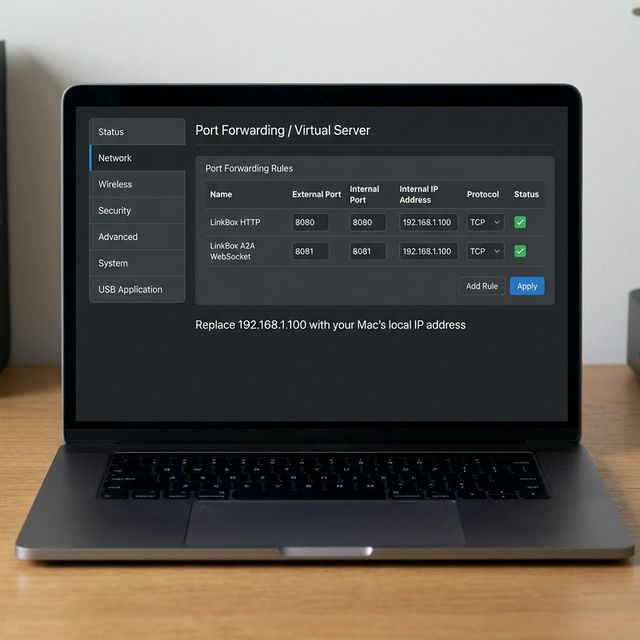
| Name | External Port | Internal Port | Internal IP | Protocol |
|---|---|---|---|---|
| macOS | ||||
| LinkBoxOrch MAC_HTTP | 8085 | 8085 | Your Mac IP | All (TCP) |
| LinkBoxOrch Mac_A2A | 8086 | 8086 | Your Mac IP | All (TCP) |
| LinkBoxOrch MAC_MCP | 8084 | 8084 | Your Mac IP | All (TCP) |
| Windows | ||||
| LinkBoxPC_HTTP | 8080 | 8080 | Your PC IP | All (TCP) |
| LinkBoxPC_A2A | 8081 | 8081 | Your PC IP | All (TCP) |
| LinkBoxPC_MCP | 8082 | 8082 | Your PC IP | All (TCP) |
Note: Replace the IP placeholders with your device's actual local IP address (e.g., 192.168.0.107 for Mac).
Auto-Verification
The Orchestrator automatically verifies port forwarding on startup by testing external connectivity through your public IP. If the health endpoint responds, the status banner will turn green automatically — no manual confirmation needed.
Step 3: Find Your Public IP
Your public IP is what the iOS app will use to connect. Visit whatismyip.com or run:
curl ifconfig.meStep 4: Configure iOS App
In the LinkBox iOS app, go to Settings → Orchestrator and enter your public IP address (e.g., 73.xxx.xxx.xxx). The app will connect over the internet to your Mac.
Pro Tip: Use Dynamic DNS
Most home internet connections have dynamic IPs that change periodically. Use a free Dynamic DNS service like No-IP to get a hostname that always points to your home IP.